Your LAN must have a unique IP address to be used for
internetworking.
To setup the IP address for each machine follow these steps:
- In Windows, click Start/Settings/Control Panel.
- Double click on the Network icon.
- Select the TCP/IP Ethernet Adapter from the list titled "The
following network components are installed."
- Click Properties, then click "Specify an IP Address."
- Type in the IP Address and Subnet Mask.
- Click OK until you return to the Control Panel Window.
- The computer will ask you to restart your computer, click
OK.
There are only three groups of IP addresses that are valid for
you to use on a machine that's connected to the net (that won't
collide with other machines). They are:
10.0.0.0 to
10.255.255.255 (Class
A)
172.16.0.0 to
172.31.255.255 (Class B)
192.168.0.0 to 192.168.255.255 (Class C)
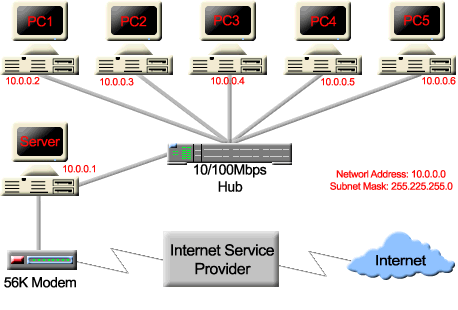
For the server, set it's IP to '10.0.0.1' and subnet
mask to
'255.255.255.0'. Then, just increment the last number of the
IP by
one for each remote machine; so the next machine would be
IP '10.0.0.2' and
the subnet mask would remain '255.255.255.0' as
shown in the figure above.
To check that your machine is properly installed do the
following:
- Choose 'Run' from the start menu
- Type 'ping [IP]', so if the other machine has the IP of
'10.0.0.1', you would type 'ping 10.0.0.1'.
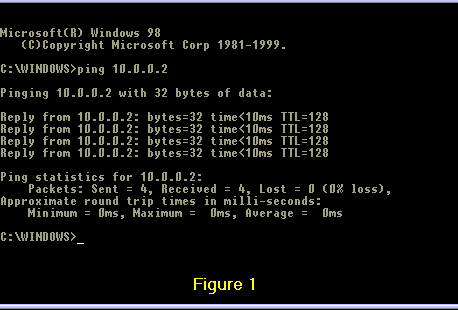
If the machines can see each other, this will say something like
'Reply from...' blah blah blah (see Figure 1).
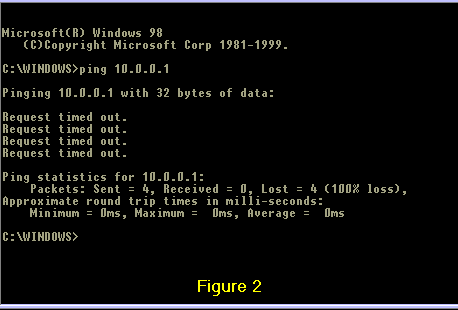
If they can NOT see each other, this will say something like 'Request timed out' (see Figure
2).